Change dates and comparisons
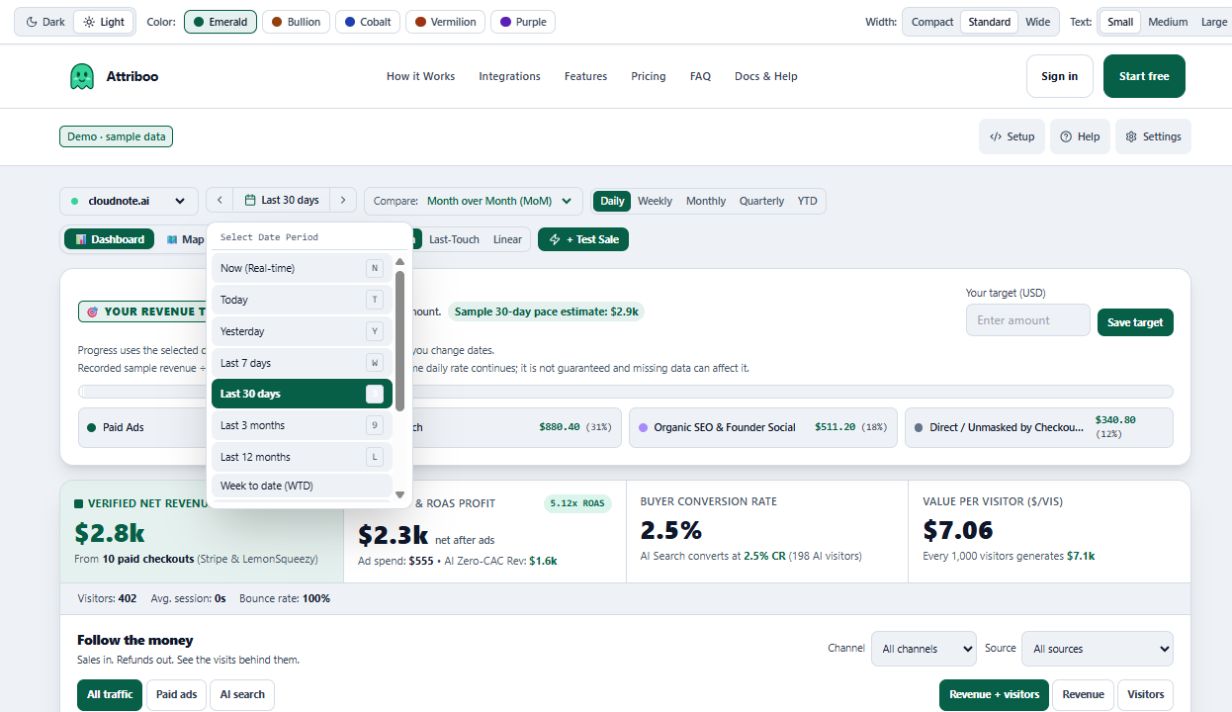
The date range chooses which activity to include. A comparison shows how that period differs from another one. Chart grouping is a separate choice.
Choose a period
- Open the date button near the top.
It may say Last 30 days, Today, or another period.
- Choose the dates you want.
Use a preset such as Last 7 days, or Custom range for specific dates.
- Check Compare beside the date control.
Choose No Comparison to look at the selected period on its own.
Common labels
| Label | What it means |
|---|---|
| Month to date (MTD) | The part of this month that has happened so far. |
| Year to date (YTD) | The part of this year that has happened so far. |
| Month over Month (MoM) | A comparison with a corresponding period one month earlier. |
| Previous Period | A comparison with the period immediately before the selected one. |
Change how the chart groups time
Daily, Weekly, Monthly, Quarterly, and YTD control how the chart groups activity. They do not replace the reporting date range. Check the range label again after changing a control.
Make a fair comparison
A partial month can look smaller than a full month simply because fewer days have passed. Use comparable periods and check timezones when comparing Attriboo with another report.
You are done when
The date label and Compare selector match the question you want to answer.
Still need a hand?
Send a question without needing to sign in.